How to Connect Document Automation to Existing Systems
<p>Learn how to effectively connect document automation to existing systems in your organization, ensuring seamless workflows and data integrity.</p>


Most organizations already have the pieces in place: a CRM, an ERP, HR software, and a handful of approval workflows. What they lack is the connective tissue. When you try to connect document automation to existing systems without a clear integration plan, you end up with duplicated data entry, broken handoffs, and documents that live in email threads instead of structured records. This guide gives you the architectural patterns, preparation steps, and troubleshooting knowledge to actually wire these systems together and get reliable, end-to-end document workflows running.
Table of Contents
Key takeaways
| Point | Details |
|---|---|
| Map your data flows first | Audit every system your documents touch before writing a single API call or building a connector. |
| Match execution patterns to use cases | Use synchronous APIs for instant generation and webhooks for signing events to avoid brittle workflows. |
| Metadata beats filenames | Track documents through their lifecycle using structured metadata fields, not filename conventions. |
| Test in parallel, not in isolation | Run new automation pipelines alongside existing workflows before cutting over to catch errors early. |
| Audit logs are non-negotiable | Capture signer identity, timestamps, and lifecycle events to meet compliance requirements from day one. |
How to connect document automation to existing systems
Before you touch a single API, you need an honest picture of what you already have. That means mapping every system your documents currently flow through: your CRM (Salesforce, HubSpot), your ERP (SAP, Oracle, Microsoft Dynamics), HR platforms, custom-built apps, and any shared drives or SharePoint libraries acting as de facto document stores.
The goal is to understand the data contract each system expects. As one practical framework puts it, reliable automation depends more on understanding what data fields your templates require and what downstream systems need than on the document generation capability itself. A contract template that pulls 40 fields from Salesforce will break silently if even one field mapping is wrong.
Once you have that map, you need to answer four planning questions:
-
What triggers document creation? A form submission, a CRM stage change, a signed approval, or a scheduled batch job.
-
What data sources feed the document? Single system or multiple, real-time or cached.
-
Where does the finished document live? SharePoint library, ERP record attachment, cloud storage bucket.
-
What happens after the document is created? Review queue, e-signature routing, compliance archival, or all three.
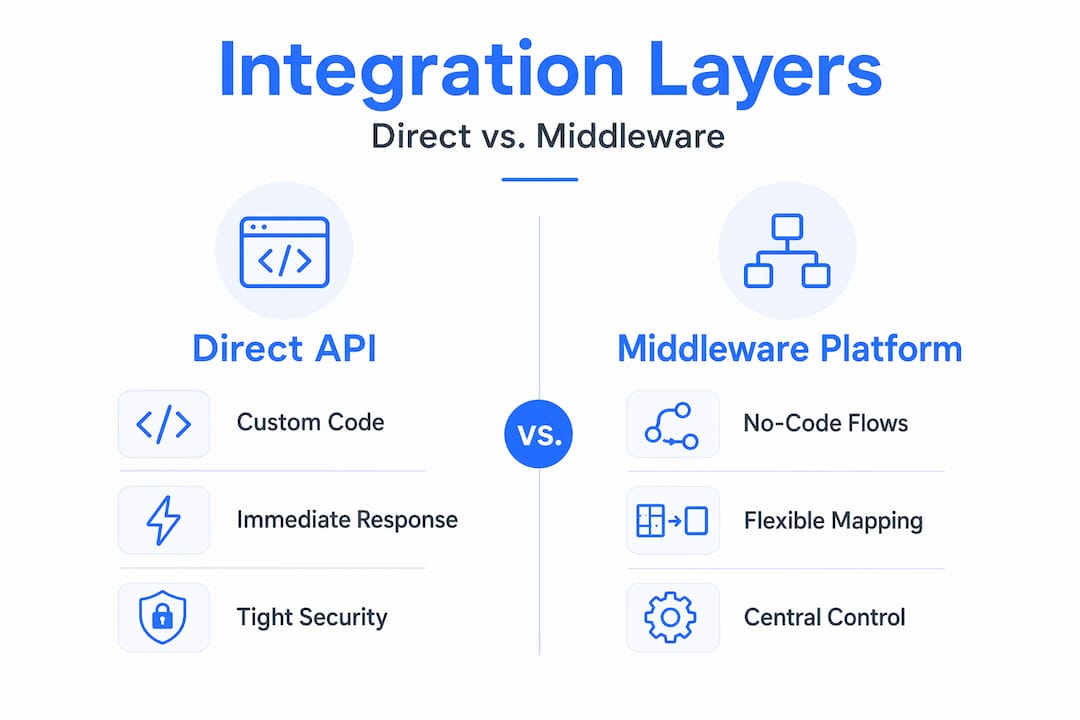
You also need to identify your integration layer. Most enterprises use one of three options: direct API calls from a custom application, a middleware platform like Microsoft Power Automate or Zapier, or an orchestration layer built into the document automation platform itself. Each has trade-offs around flexibility, maintenance burden, and cost.
Security deserves explicit attention at this stage. Workflows crossing multiple systems require careful permission scoping so that the automation service account can read CRM data and write to SharePoint without having admin rights across your entire tenant.
Pro Tip: Before building any integration, create a one-page data flow diagram showing every system, every trigger, and every output. Teams that skip this step spend three times as long debugging misfired automations later.
Integration patterns and architectural approaches
With your planning done, you can choose the right architectural pattern. The wrong choice here is the most common source of integration failures.
Embedding automation as a reusable layer
The most durable approach is to treat document automation as a reusable embedded layer inside the systems where your teams already work, rather than a separate application they have to switch to. When automation runs programmatically within your CRM or ERP, adoption follows naturally because the user never leaves their existing interface.

Understanding API execution models
This is where most integrations get into trouble. Document automation APIs use three distinct execution patterns, and treating them interchangeably breaks workflows:
-
Synchronous generation. The API call returns the finished document immediately. Use this for simple, fast document creation where the caller can wait a few seconds.
-
Asynchronous processing with polling. You submit a job, receive a task ID, and poll a status endpoint until the document is ready. Use this for complex PDF operations, large batch jobs, or any processing that takes more than a few seconds.
-
Webhook-driven events. The system calls back to your endpoint when an event completes, such as a signature being applied. Use this for e-signature workflows where completion time is unpredictable.
The table below maps common enterprise use cases to the right execution model:
| Use case | Execution model | Why it fits |
|---|---|---|
| Generate a quote from CRM data | Synchronous | Fast, single-record, caller waits |
| Convert and compress large PDF batches | Async with polling | Processing time varies by file size |
| Route contracts for e-signature | Webhook callback | Signer response time is unpredictable |
| Trigger downstream ERP update on signing | Webhook callback | Event-driven, not time-driven |
A real-world example: SharePoint and Power Automate
SharePoint Online supports structured document generation by turning Word templates into AI-powered forms. When a user submits the form, the document saves automatically to a library with all field values mapped. From there, a Power Automate flow picks up the document, routes it to DocuSign for signing, and writes the signed document back to the originating ERP record.
This pattern works because each step has a clear handoff. The metadata fields on the SharePoint document carry signer names, email addresses, and record IDs so that the signed document maps back to the correct ERP record without any manual matching.
Pro Tip: When designing flows that cross more than two systems, assign a unique correlation ID to each document at creation time and pass it through every API call. This makes debugging a failed workflow a matter of filtering logs, not guessing.
Common integration pitfalls and how to avoid them
Even well-planned integrations run into predictable problems. Knowing them in advance saves significant rework.
-
Assuming all API calls are synchronous. If your workflow calls a PDF processing API and expects an immediate response, it will time out under load. Always check the API documentation for execution model before building the flow.
-
Skipping idempotency. If a webhook fires twice due to a network retry, a naive integration creates two signed documents or triggers two ERP updates. Build idempotency keys into every write operation so duplicate events produce no effect.
-
Filename-based document matching. Relying on filenames to map a returned signed document to its source record is fragile. Use structured metadata fields like signer email and record ID instead. Filenames get changed; metadata fields do not.
-
Skipping parallel testing. Running new automation pipelines alongside existing RPA workflows before full cutover lets you compare outputs, catch field mapping errors, and identify cost drivers before they affect production.
-
Broad permission scopes for AI agents. If you are connecting document automation to AI agents, use constrained permission models. Model Context Protocol allows scoped document operations for AI-driven workflows, limiting what an agent can do to only the actions it genuinely needs.
The most expensive integration mistakes are not technical failures. They are design failures: workflows built on assumptions about API behavior that nobody verified before go-live.
Measuring success and maintaining reliable workflows
Getting the integration running is step one. Keeping it reliable and improving it over time is the real work.
Audit trails are the foundation. Capturing document lifecycle events including signer identity, timestamps, and status changes is required for GDPR compliance and gives you the traceability to diagnose any workflow issue after the fact. Store this data in your own systems alongside provider-generated logs so you retain portability if you ever change vendors.
When you scale to thousands of documents per day, a few practices become critical:
-
Monitor queue depths and processing times, not just success or failure counts.
-
Set up alerts for documents stuck in pending states beyond a defined threshold.
-
Log every state transition explicitly so you can reconstruct the full lifecycle of any document on demand.
-
Review failed document events weekly and categorize them by root cause to spot systemic issues early.
Continuous improvement comes from treating your document workflows like software. Collect user feedback from the teams submitting and approving documents. Track where delays occur. The analytics from an integrated document automation platform will surface patterns you cannot see when documents are moving through email threads.
Pro Tip: Set a quarterly review cadence specifically for your document automation workflows. Pull the error logs, review processing times, and ask the teams using the system what still feels manual. The answer usually points to the next integration worth building.
The efficiency gains from a properly connected system are substantial. Organizations that automate existing workflows across their document lifecycle consistently report faster cycle times, fewer data entry errors, and better visibility into where approvals are stalling. The key is measuring these outcomes from baseline so you can demonstrate the value of the integration investment.
My take on integrating document automation in enterprise environments
I have watched organizations spend months building document automation tools as standalone applications, only to see adoption stall because users had to leave their CRM or ERP to generate a document. The insight that changed how I think about this is simple: embedding automation inside systems where work happens removes the friction that kills adoption. The document gets created in context, and nobody has to remember to use a separate tool.
The second thing I have learned is that API design quality matters more than feature lists. I have seen integrations built on well-documented, stable APIs that ran for three years without a maintenance call. I have also seen integrations built on underdocumented APIs that required constant patching. Before you commit to a document automation platform, test the API with real data from your systems. Check how it handles errors, what the retry behavior looks like, and whether the async patterns match what your workflows need.
My strongest recommendation for anyone starting this work: do not try to automate everything at once. Pick one high-volume, high-friction document workflow, integrate it properly with full metadata tracking and audit logging, measure the improvement, and then scale. The teams that try to connect every system in a single project almost always end up with a fragile, partially working integration that nobody trusts. Start small, prove it works, and build from there.
— Vivek
See how Docupow handles the integration work for you
If you have mapped your workflows and know what you need to connect, the next question is which platform makes that integration practical rather than painful.
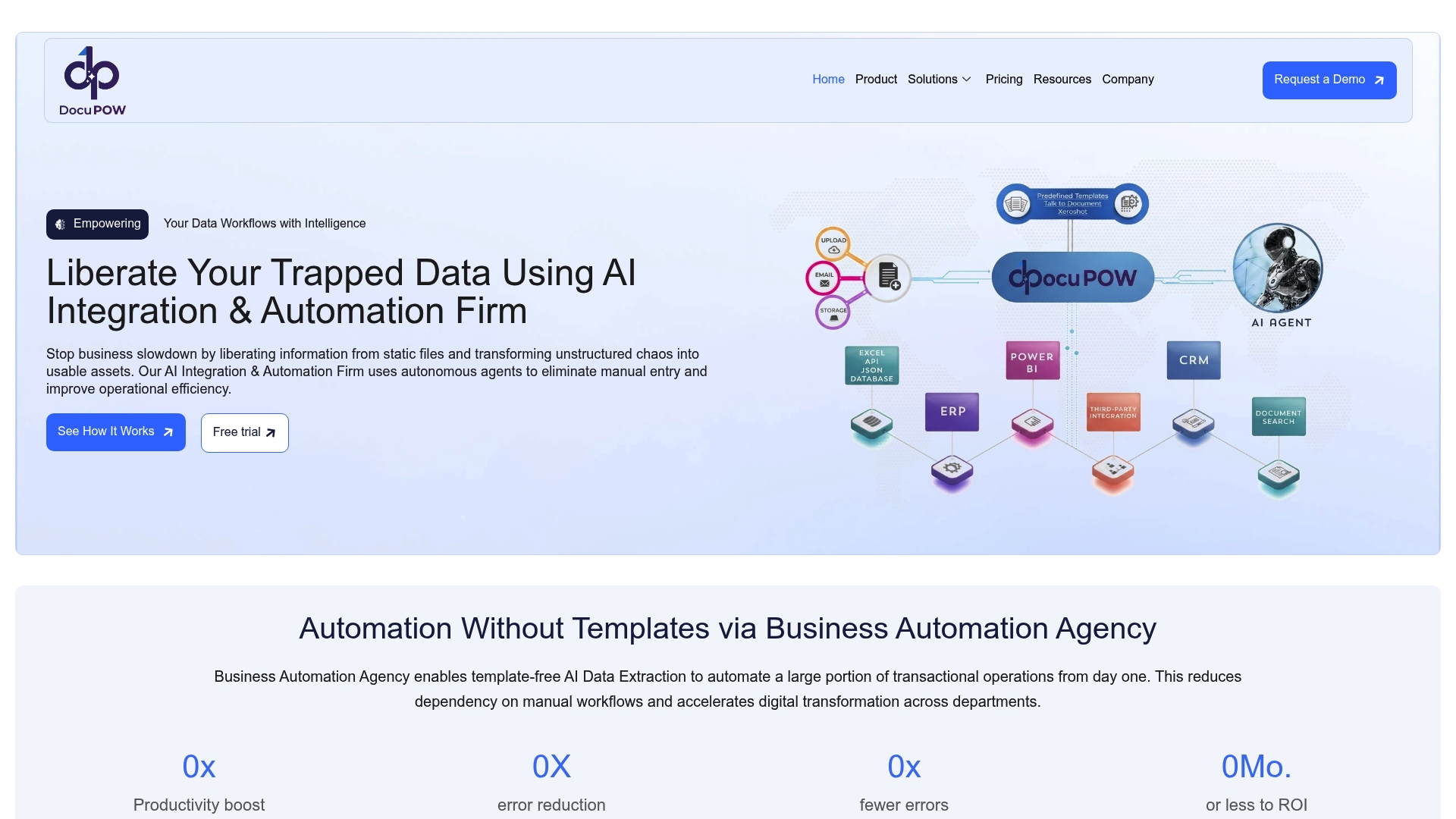
Docupow is built API-first, which means you can embed it directly into your CRM, ERP, HR system, or custom application without rebuilding your existing processes around it. Pre-built connectors for Microsoft Power Automate and Zapier cover the most common enterprise workflow patterns out of the box. For teams in logistics or insurance, Docupow offers industry-specific workflow configurations that account for the document volumes and compliance requirements those environments demand. If your use case is more complex, the Docupow product supports full custom API integration with the autonomous AI agents that understand document context, not just field positions.
FAQ
What does it mean to connect document automation to existing systems?
It means wiring your document generation, review, and signing workflows directly into the platforms your team already uses, such as your CRM, ERP, or SharePoint, so documents are created, routed, and stored automatically without manual steps between systems.
What API execution model should I use for e-signature workflows?
Use webhook callbacks for e-signature workflows. Since signer response time is unpredictable, webhook-driven events let the signing platform notify your system when the event completes rather than requiring your application to poll repeatedly.
How do I prevent duplicate documents when integrating automation tools?
Build idempotency keys into every write operation in your workflow. This way, if a webhook or API call fires more than once due to a network retry, the duplicate event has no effect and only one document is created or updated.
What is the best way to track signed documents back to source records?
Use structured metadata fields such as signer email and record ID rather than filename matching. Metadata-based tracking is reliable because those fields travel with the document through every system, while filenames are easily changed or duplicated.
How do I keep AI agents secure when connecting them to document automation?
Constrain what each AI agent can do using a scoped permission model. Model Context Protocol lets you define exactly which document operations an agent is allowed to perform, reducing the risk of unintended actions across your document workflows.
Recommended
See DocuPOW on your documents.
Stop building templates. Start extracting data.