Email Document Ingestion: How to Turn Inbox Files Into Data
Email document ingestion turns attachments and message bodies into validated data for your ERP or CRM. See how it works, where it fails and how to start.

Email document ingestion is the automated capture of everything that arrives in a shared inbox: the message body, the attachments and the files hidden inside them. The system classifies each item, extracts the fields you need, checks them and hands clean data to the system that acts on it. Done well, nobody retypes an invoice, purchase order or claim form from a PDF into your ERP again.
This guide covers how the pipeline works, how attachment parsing identifies file types, how to validate what the AI extracts, and how to roll it out without creating a new mess.
TL;DR
- Email ingestion is a pipeline: receive, identify file types, extract, classify, validate, route. OCR is only one step in it.
- Template-based parsers break whenever a supplier changes a layout. Template-free extraction reads the document for meaning and keeps working on unseen formats.
- Validation is where accuracy is won: match against POs, vendor records and totals, and send low-confidence fields to a human reviewer.
- Start with one high-volume mailbox, such as accounts payable or order intake, and measure straight-through rate before adding more.
- Email is not a fully secure channel, so decide which documents may arrive by email and which must go through a direct upload.
Table of Contents
- What email document ingestion actually does
- How attachment processing identifies different file types
- OCR versus intelligent document processing
- What the AI does when an email arrives
- Validating extracted data before it reaches your systems
- Routing data into ERP, CRM and accounting systems
- Security: email is a convenient channel, not a secure vault
- A practical rollout in five steps
- Our perspective: ingestion is the start of a workflow
- Where DocuPOW fits
- FAQ
- Sources
What email document ingestion actually does
Most teams already have a document pipeline. It is just a human one: someone opens an email, downloads the attachment, reads it, types values into another system and files the message. Ingestion replaces each of those steps with software.
A complete flow has six stages:
- Receive. A dedicated address or a connection to a mailbox pulls in new messages.
- Unpack. The system separates the body, attachments, inline images and files inside containers such as ZIP archives.
- Identify. Each file is typed so the right reader handles it.
- Extract. Text, tables and key fields are pulled out of PDFs, scans, spreadsheets and the email text itself.
- Validate. Values are checked against rules and reference data.
- Route. Approved data is pushed to the ERP, CRM, accounting package or a queue for a person.
The queries people type for this, such as parsing email attachments or processing email attachments, are really about stages two through four. The business result depends on stages five and six.
How attachment processing identifies different file types
A mailbox is a messy place. The same address receives a native PDF invoice, a phone photo of a delivery note, an Excel price list, a Word contract and a ZIP file holding all four. Treating them identically fails.
Professional guidance from the e-discovery field, where this problem has been solved for years, is clear on the approach. Processing software should identify file types using header information, MIME types and file extensions, because extensions alone can mislead. It should also extract both the email content and its attachments, including files inside containers, and recognize the common Office formats.
In practice that means the system reads the first bytes of each file (its signature) instead of trusting the name. A file called “invoice.pdf” that is really an executable, or a “.dat” file that is really a PDF, gets handled correctly in either case.
Handling the awkward cases
A few situations cause most of the trouble in real inboxes:
- Forwarded chains. The document you need is three replies deep. The parser must separate the new content from quoted history.
- Inline images and signatures. Logos and tracking pixels should not be treated as documents.
- Scans and photos. These need OCR first, and quality varies widely.
- Multi-document PDFs. One attachment may contain an invoice, a packing slip and a certificate. Splitting before extraction matters.
- Password-protected or corrupt files. These should land in an exception queue with a reason, not disappear.
Keeping the relationship between an email and its attachments also matters. EDRM recommends tracking email family relationships, including attachments, and notes that some systems keep families intact even when removing duplicates. For a finance team, the equivalent is simple: the extracted invoice data should always link back to the exact message and sender it came from, so an auditor can trace it.
OCR versus intelligent document processing
OCR converts the pixels of an image into text. That is all. It does not know whether “4,250.00” is a subtotal, a tax amount or a part number.
Intelligent document processing (IDP) uses OCR as one layer and adds classification, field understanding, validation and delivery. The difference shows up the first time a supplier moves its totals box.
| Capability | OCR alone | Template-based capture | Template-free AI extraction |
|---|---|---|---|
| Reads text from scans | Yes | Yes | Yes |
| Knows which value is the invoice total | No | Only if layout matches the template | Yes, from context |
| New supplier layout | Raw text only | Needs a new template | Works on first sight |
| Maintenance | Low | High, grows with every vendor | Low |
| Validation and routing | None | Limited | Built into the workflow |
Template-based tools are not useless. If you receive documents from three suppliers who never change formats, a template can be enough. The cost appears at scale, when every new vendor, revision or language needs someone to build and maintain another template.
What the AI does when an email arrives
When people ask whether AI can process email, the useful answer is that it handles two different jobs.
Reading the message. The email body often carries the actual instruction: “please ship 40 units to the Dayton warehouse” or “attached is the corrected quote.” A language model can extract intent, quantities, dates, references and urgency, and decide what kind of request it is.
Reading the documents. Agents extract fields and tables from attachments without a template, using the layout and the words around each value to decide what it is. They can then reconcile the two: the email says 40 units, the PO attachment says 45, so the case is flagged.
That reconciliation across body and attachment is something a fixed parser rarely does, and it is where much of the manual checking time goes today.
Validating extracted data before it reaches your systems
Extraction accuracy is never the whole story. A field read with 98 percent confidence is still wrong sometimes, and a wrong invoice total posted to the ledger costs far more than a few seconds of review. Build validation as layers.
Rule checks
- Line items add up to the subtotal; subtotal plus tax equals the total.
- Dates are plausible and in the expected format.
- Required fields are present: vendor, document number, currency.
- Document numbers are not duplicates of ones already processed.
Reference checks
- Vendor name and tax ID match your vendor master.
- The PO number exists, is open and has enough remaining balance.
- Part numbers and unit prices match your catalog or contract.
- Bank details have not changed since the last payment, a common fraud signal.
Human-in-the-loop review
Set a confidence threshold per field. Anything above it flows straight through. Anything below it goes to a reviewer who sees the original document beside the extracted values, with the source location highlighted. Corrections should feed back so the same mistake does not repeat.
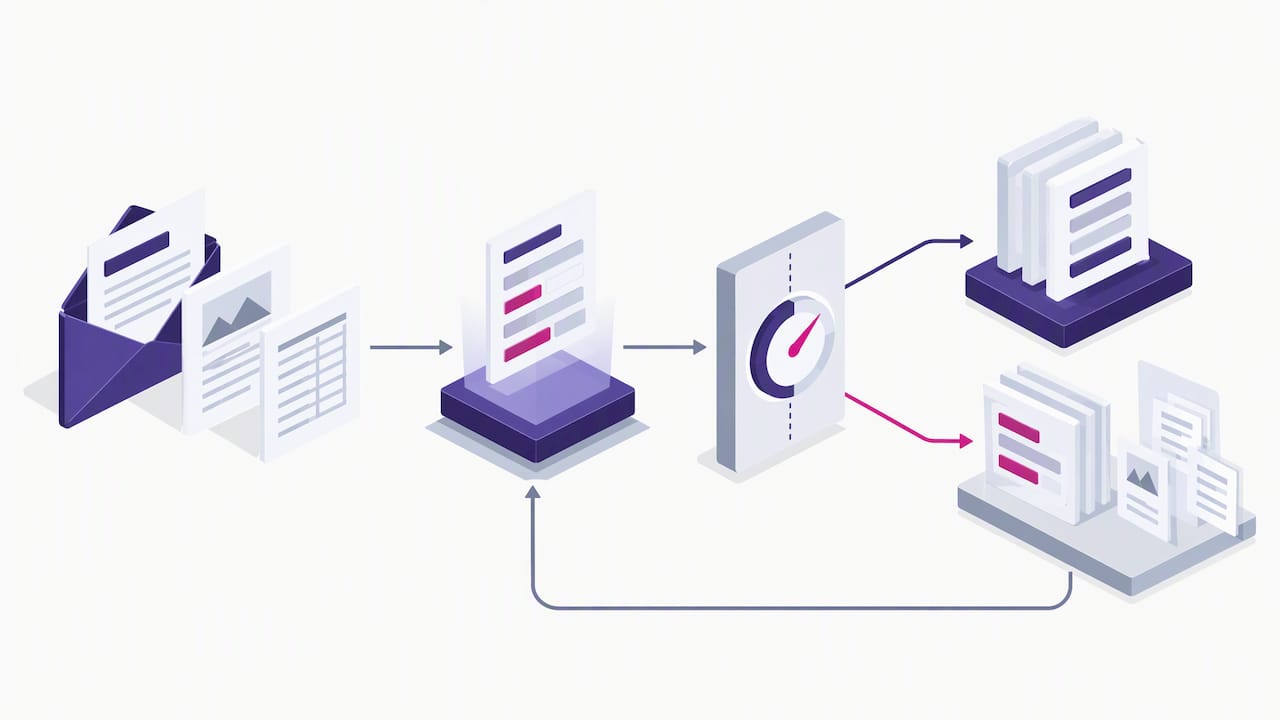
The goal is not zero human involvement. It is humans looking only at the roughly small share of documents that really need judgment, and every decision being recorded.
Routing data into ERP, CRM and accounting systems
Capturing data is only worth it if it lands where work happens. Typical destinations by document type:
| Document | Typical destination | What gets created |
|---|---|---|
| Vendor invoice | ERP or AP system | Invoice draft matched to PO and receipt |
| Customer purchase order | ERP or order management | Sales order |
| RFQ or quote request | CRM | Opportunity or task for sales |
| Claim or policy form | Claims platform | New case with attached files |
| Delivery note or bill of lading | ERP or logistics system | Goods receipt or shipment update |
| Contract or amendment | Contract repository | Record with key terms and dates |
There are three common integration styles. Direct API connections to the ERP or CRM are the cleanest. Webhooks let you trigger your own services when a document is approved. A file or CSV drop is the fallback for older systems. Whichever you use, keep the original email and attachment stored and linked to the created record.
Security: email is a convenient channel, not a secure vault
Email is easy for senders, which is why it dominates intake. It is not designed for sensitive material. One accounting platform’s own help guidance notes that TLS encryption protects email in transit only if the sender uses it, that messages may pass through other systems along the way, and that highly confidential files are safest uploaded directly to a secure portal.
That translates into a practical policy:
- Decide by document class. Routine invoices and order confirmations can arrive by email. Tax filings, patient records, IDs and bank detail changes should go through a secure upload link.
- Scan for malware before any attachment is opened or parsed.
- Restrict who can see raw mail. The ingestion mailbox should not be a shared inbox that half the company reads.
- Log everything. Keep an audit trail from message to extracted value to approval.
- Set retention rules. Original files should follow your records policy, not sit forever in a mailbox.
- Check sender identity. Flag messages that fail domain authentication or come from unknown addresses before they create payable records.
A practical rollout in five steps
- Pick one mailbox. Accounts payable or customer order intake is usually best: high volume, clear fields, measurable cost.
- Sample 200 real messages. Include the ugly ones: scans, forwards, multi-document PDFs. Count the document types and the systems they end in.
- Define the fields and rules. List what must be extracted, what must match and who approves exceptions.
- Run in shadow mode for two weeks. Let the system extract while staff keep working the old way, then compare.
- Go live with review on. Track straight-through rate, correction rate per field, time from receipt to posting and exceptions by cause. Raise the confidence thresholds only as the numbers justify it.
Only after one mailbox is stable should you add the next. Teams that connect every inbox in the first month usually spend the second month untangling exceptions.
Our perspective: ingestion is the start of a workflow
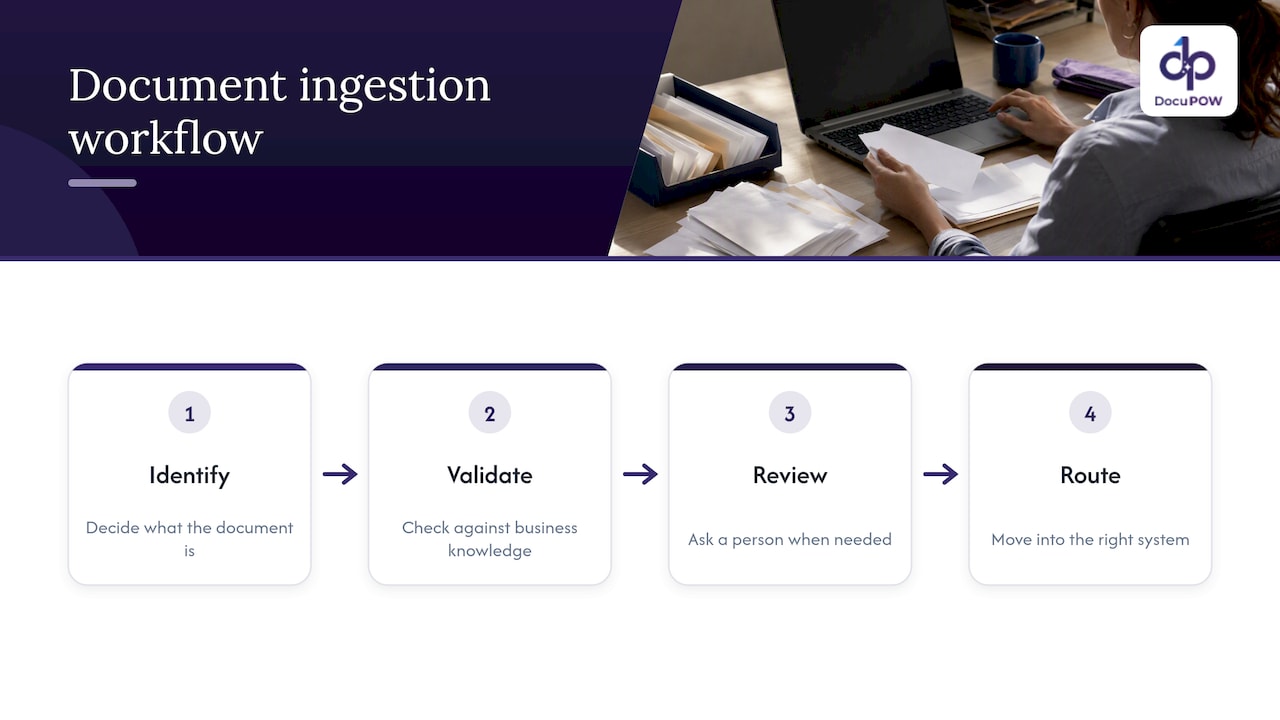
We see many teams treat email ingestion as a parsing problem: find the best reader, get the fields out, done. We think that frames it too narrowly. The fields are the easy part now. The expensive part is everything around them: deciding what the document is, checking it against what the business already knows, asking a person only when needed and moving the result into the right system.
That is why we built DocuPOW around agents that read documents in context instead of templates, and why human-in-the-loop review sits inside the workflow rather than being bolted on. A supplier you have never seen before should not need a project. A reviewer should see the source of every value. And a manager should be able to ask a question across thousands of documents and get an answer with citations back to the originals.
If you take one idea from this guide, make it this: measure the cost of an exception, not the accuracy of a field. The ingestion system that wins is the one that makes exceptions rare, cheap to resolve and fully traceable.
— Syed Naveed Abbas
Where DocuPOW fits
DocuPOW’s platform combines template-free extraction, multi-step workflow orchestration, human audit review and ERP or CRM integration through API, so inbox documents can move from receipt to posted record in one flow. The Starter plan is $99 per month and Professional is $499 per month; Enterprise pricing is not published. You can compare them on the pricing page, or read how document workflow automation works end to end before you pilot.
If finance documents are your first target, the guide to automating financial data extraction covers invoices and statements in more depth. For teams planning for large volumes, see these high-volume processing practices.
FAQ
How does AI process documents that arrive by email?
The system pulls the message, separates the body from its attachments, identifies each file type and reads the content. It then classifies the document, extracts the relevant fields, validates them against your rules and data, and routes the result to a business system. Low-confidence items go to a person for review.
What is the difference between IDP and OCR?
OCR turns an image of text into machine-readable characters. IDP builds on it by identifying the document type, understanding which values are which fields, validating them and delivering structured output. OCR is a step inside an IDP workflow, not a replacement for one.
Can I parse email attachments without building templates?
Yes. Template-free extraction uses the context of each value, such as nearby labels and table structure, to identify fields on layouts it has not seen before. You still define which fields you want and which validation rules apply, but you do not build a template per supplier.
Is it safe to send sensitive documents by email?
Not always. Encryption in transit depends on the sender’s setup, and messages can pass through other systems. Use email for routine documents, and give senders a secure upload option for highly confidential files such as tax forms, patient records or bank detail changes.
Sources
Recommended
See DocuPOW on your documents.
Stop building templates. Start extracting data.