How to Reduce Manual Data Entry: A Practical Playbook
Cut manual data entry at the source: find where re-keying happens, automate document capture, stop duplicate entry, and measure results with human oversight.


To reduce manual data entry, stop typing data that already exists in a document or another system. Capture it automatically from invoices, forms, receipts and emails, validate it against rules, and send it straight into the system that owns it. Start with the one document type your team re-keys most often, measure the result, then expand.
This guide shows how to find where re-keying hides, which fixes work in which order, how to prevent duplicate entry across departments, and how to keep human review where it matters.
TL;DR
- Map where data is typed twice first. The biggest wins sit at document intake (invoices, purchase orders, forms) and at handoffs between systems.
- Replace templates with template-free extraction so new layouts from new vendors do not bring manual work back.
- Give every business fact one system of record and push data one way into other systems, so nobody re-enters it.
- Keep people in the loop as reviewers of exceptions, not as typists.
- Measure touch time per document, error rate and exception rate before and after, and expand once those numbers move.
Table of Contents
- Why manual data entry persists
- Step 1: Find where the re-keying happens
- Step 2: Automate capture from documents
- Step 3: Eliminate spreadsheet data entry
- Step 4: Prevent duplicate data entry across departments
- Step 5: Reduce manual work in expense and receipt processing
- Step 6: Connect systems so data moves on its own
- Step 7: Keep people in the loop where it counts
- Step 8: Measure what changes
- A realistic rollout plan
- Our perspective
- Automate document entry with DocuPOW
- FAQ
- Sources
Why manual data entry persists
Most teams do not choose manual entry. It accumulates. A vendor sends a PDF, someone copies the totals into the accounting system, someone else updates a spreadsheet, and a third person emails the workbook to a manager. Each step is small. Together they become a job.
The usual causes are:
- Documents arrive in many formats. PDFs, scans, spreadsheets, photos and email bodies all carry the same kind of information in different shapes.
- Systems do not talk to each other. When the ERP, CRM and spreadsheet have no connection, a person becomes the integration.
- Template-based tools break. Rule sets built for one layout fail when a supplier changes its invoice, and staff fall back to typing.
- Nobody owns the data. Several departments create or overwrite the same record, so each keeps its own copy.
The risks are well understood. Campbell Technology Advisors describes four connected problems with manual financial entry: errors, limited process visibility, security and access concerns, and difficulty scaling. In practice that looks like transposed digits, duplicate invoices, wrong account codes, and audit trails scattered across inboxes and shared drives.
Step 1: Find where the re-keying happens
Before you buy anything, spend a week watching the work. You are looking for three patterns.
- Copy from document to system. Invoices, purchase orders, bills of lading, claims forms, onboarding packets.
- Copy from system to system. CRM to billing, ERP to a reporting spreadsheet, HRIS to payroll.
- Copy to fix. Corrections made because an earlier entry was wrong.
For each, write down the document or field, the volume per week, the minutes per item, who does it and what goes wrong. A simple tally is enough. Rank by volume times minutes, then pick the top one.
Do not start with the most complicated workflow. Start with the one that is high volume, repetitive and has a clear destination system. For many finance teams that is accounts payable. For manufacturers it is often the quote-to-order path. For logistics it is shipping and customs paperwork.
Step 2: Automate capture from documents
Capture is where most manual entry begins, so it is where automation pays back first. Modern document capture reads a file, identifies the fields, and returns structured data. The difference between tools lies in how they cope with variety.
Template-based OCR versus template-free extraction
Traditional OCR needs a template or a set of zones for each layout. It works while layouts stay the same. When a new vendor appears or an existing one redesigns its invoice, someone has to build or fix a template, and in the meantime people type.
Template-free extraction reads the document for meaning rather than position. It finds the invoice number, the due date and the line items wherever they sit on the page. That is the approach we built DocuPOW around: zero-shot extraction designed to adapt to layouts it has not seen before, which keeps setup and maintenance low. If you want a map of the categories before choosing, our overview of types of financial document automation tools explains where each fits.
What to extract, and why line items matter
Header fields are the easy part. The hours disappear in line items: quantities, unit prices, part numbers, tax lines. If a tool captures only totals, staff still key in the detail to match purchase orders. Check that whatever you adopt handles tables well. Our guide to invoice line item extraction covers the practical points finance teams run into.
Validate before you post
Extraction without validation only moves errors faster. Define rules the data must pass before it reaches your system:
- Required fields are present and in the right format.
- Totals equal the sum of line items plus tax.
- The vendor, PO number and amounts match existing records.
- Currency and date formats are consistent.
Documents that fail go to a reviewer with the problem field flagged. Our write-up on invoice data extraction shows how to catch errors before posting.
Step 3: Eliminate spreadsheet data entry
Spreadsheets are often the second place data gets typed. A person extracts data from a PDF, pastes it into a workbook, adds a formula, and emails the file. The spreadsheet becomes a shadow system with no audit trail and no single owner.
To remove it:
- Write directly to the destination. Extracted data should flow by API into the ERP, CRM or database, not into an intermediate file.
- Replace reporting spreadsheets with live views. If the spreadsheet exists only to summarize data from another system, a dashboard on that system removes the typing.
- Use forms with validation for the data you must collect from people. Dropdowns and required fields prevent the free-text variations that make later matching painful.
- Keep spreadsheets for analysis only. Reading data out of a system into a workbook is fine. Typing data into one so another person can retype it is the problem.
For teams that need to see document data as it arrives, real-time data extraction from documents explains how streaming capture replaces batch keying.
Step 4: Prevent duplicate data entry across departments
Duplicate entry is mostly a governance problem, not a technology one. When sales, finance and operations each maintain their own version of a customer or vendor, people retype the same details and the versions drift apart.
Give every fact one owner
Assign a system of record for each kind of data: customers in the CRM, vendors in the ERP, employees in the HR system. OpsGrit recommends one system of record per business fact, stable identifiers across systems, and one-way propagation, and warns that unrestricted two-way synchronization creates loops, overwrites and conflicts. The rule of thumb is simple: data is created once, in one place, and flows outward.
Use stable IDs and match carefully
When the same vendor appears as “Acme Inc.”, “ACME Incorporated” and “Acme”, the system creates three records. Matching on a stable identifier such as a vendor ID or tax ID avoids that. Where no identifier exists, fuzzy matching on names and addresses helps, but it should route ambiguous matches to a person rather than merge automatically. The cost of a wrong merge differs from the cost of a missed one, so decide which you can tolerate.
Catch duplicates at intake
Duplicate invoices are the costliest form. Check each incoming document against existing records on vendor, invoice number and amount before it is posted. Automated intake makes this routine, because every document passes through the same check. Keeping the check next to capture is why we built invoice processing flows that validate before anything reaches the ledger.
Teams working on supplier data quality also benefit from verifying payee details before payment. Reading about B2B payment trends for finance teams gives context on how verification fits into the repetitive financial work you are trying to remove.
Step 5: Reduce manual work in expense and receipt processing
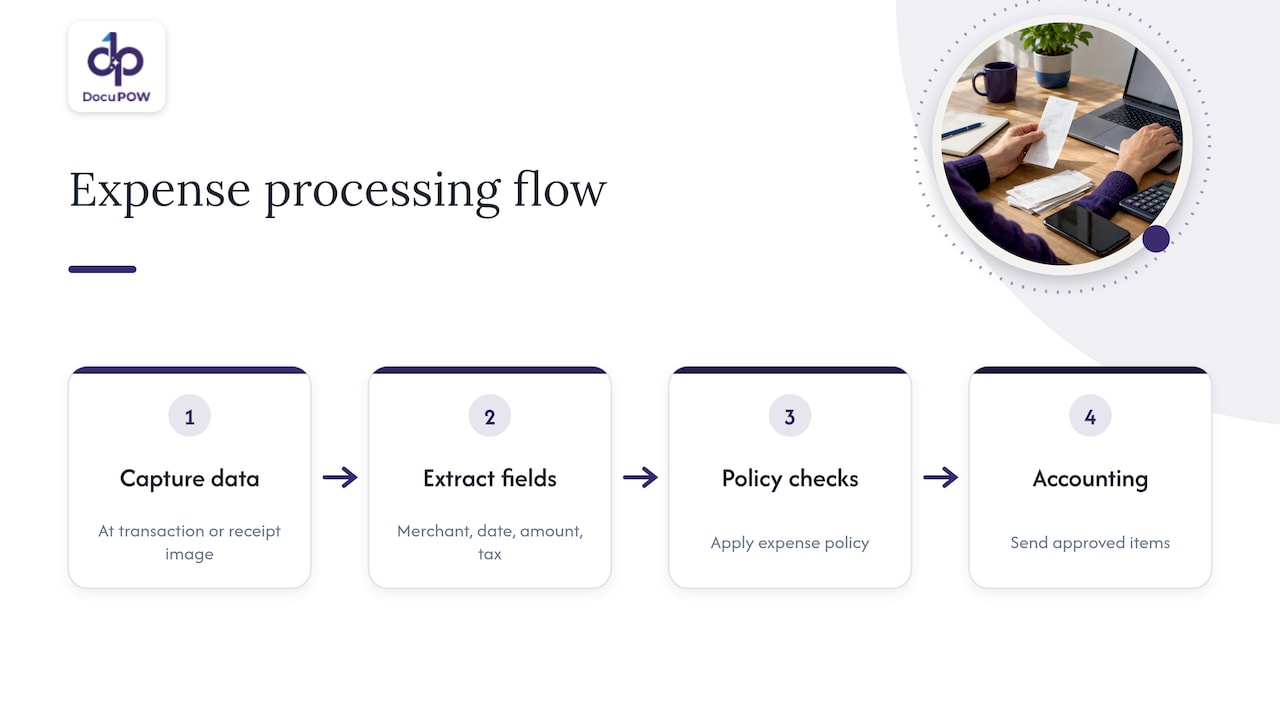
Expenses are a classic source of typing: someone collects receipts, keys in merchant, date and amount, and codes the category. The fix is to capture data at the moment of the transaction or from the receipt image, extract merchant, amount, date, tax and currency, apply policy checks, and send approved items to accounting.
Two cautions matter for U.S. teams. First, receipts need to be retained in a form that satisfies your tax and audit requirements, so ask your tax adviser what your records must show. Second, extraction errors on small, crumpled or faded receipts are common, so validation rules and a review queue matter more here than anywhere else. Our guide to receipt data extraction covers the OCR errors to watch for and the IRS considerations.
Step 6: Connect systems so data moves on its own
Once capture works, connect it to where data lives. Integration removes the last manual step: the person who takes extracted data and enters it elsewhere.
- ERP and accounting: post invoices, purchase orders and goods receipts directly.
- CRM: populate quotes, contracts and account details from signed documents.
- Databases and data warehouses: stream structured records for reporting.
- Developer tools: use an API for custom workflows when no prebuilt connector exists.
Design each connection with one-way flow and a clear owner. Add an exception path so a failed post does not silently drop a document. Teams that think in events will find it useful to see how event-driven document processing triggers downstream steps without templates.
Step 7: Keep people in the loop where it counts
The goal is not removing people from the process. It is changing their job from typing to reviewing. A sound design has three layers:
- Straight-through processing for documents that pass every validation rule.
- Reviewer queue for documents that fail a rule or fall below a confidence threshold, showing the source document next to the extracted fields.
- Audit log recording what was extracted, what was changed, by whom and when.
This keeps compliance teams comfortable and gives auditors a trail. It also produces a feedback loop: patterns in exceptions show you which vendors, document types or rules need attention. For finance leaders, our benchmarks on touchless invoice processing explain how to think about the share of documents that need no human touch.
Security belongs in the design from the start. Documents contain bank details, personal data and contract terms. Look for encryption in transit and at rest, role-based access, and logging. If you work in healthcare, insurance or financial services, check which regulations apply to your data with your compliance team before you choose a vendor.
Step 8: Measure what changes
Pick metrics before you start so you can show the difference.
| Metric | How to measure | What a good trend looks like |
|---|---|---|
| Touch time per document | Minutes of human handling, sampled weekly | Falls as straight-through rate rises |
| Straight-through rate | Documents posted with no human edit, divided by total | Rises as rules and extraction improve |
| Error rate | Corrections after posting, divided by total | Falls, and catches move earlier |
| Exception rate | Documents sent to review, divided by total | Stabilizes, with fewer repeat causes |
| Duplicate rate | Duplicates caught or paid, per thousand documents | Falls toward zero |
| Cycle time | Receipt of document to posting | Shrinks from days to hours or minutes |
Record a baseline for two to four weeks, run the automated process on one document type, and compare. Treat any published industry percentage as a prompt for your own measurement, not as a promise. Your documents, vendors and systems are specific to you.
A realistic rollout plan
Weeks 1 to 2: Map the re-keying and choose one document type. Gather 100 to 200 real samples, including the ugly ones.
Weeks 3 to 4: Configure extraction and validation rules. Run samples through and review results with the people who do the work today.
Weeks 5 to 8: Run in parallel on live documents with a reviewer queue. Connect the destination system through its API.
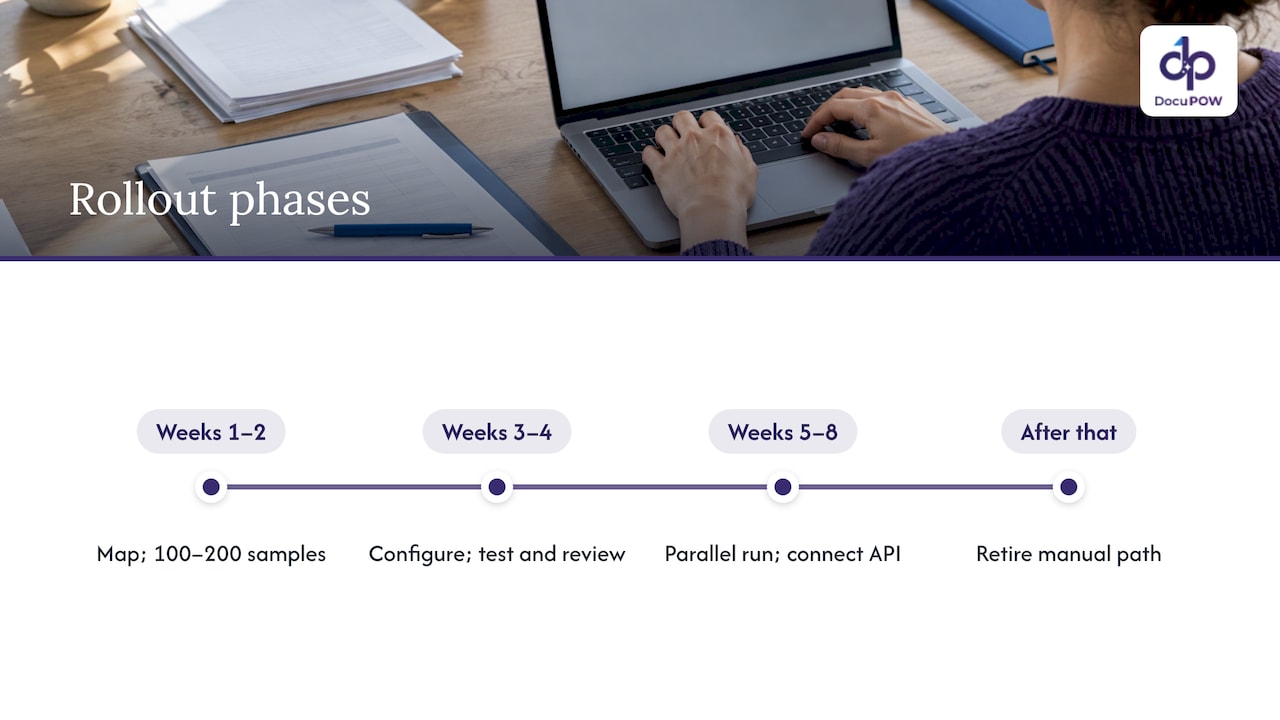
After that: Turn off the manual path for that document type, then move to the next. Each new type is faster because rules, integrations and review habits already exist.
Our perspective
Most advice on cutting manual entry stops at “buy OCR.” We think that is the reason so many projects stall. Template-based tools trade one kind of manual work for another: someone has to build and maintain a template for every new layout.
We built DocuPOW on a different premise. Our agents are designed to read a document the way an experienced clerk does, by understanding what a field means rather than where it sits. That is why we focus on template-free, zero-shot extraction, schema validation before data reaches your systems, and human-in-the-loop review for the exceptions that deserve a person’s judgment.
We also believe extraction alone is not the finish line. The value comes when data moves into your ERP or CRM without a second keystroke, and when you can ask questions of your documents and get answers with source citations. That is the shift from scanning pages to running document workflows, and it is what we mean by document intelligence, orchestrated.
Syed Naveed Abbas
Automate document entry with DocuPOW
If your team re-keys invoices, receipts, contracts or forms, DocuPOW reads them without templates, validates the data against your schema and sends it to your systems by API, with audit review for exceptions. Plans start with Starter at $99 per month and Professional at $499 per month, and Enterprise is available for larger needs. See the pricing page or explore the platform.
Finance teams can go straight to our accounting solution, and operations teams to document and workflow automation.
FAQ
How do I reduce manual data entry errors?
Automate capture so people stop retyping, then validate every record before it is posted. Check required fields, totals, vendor and PO matches, and formats. Send failures to a reviewer with the source document beside the extracted fields so fixes happen before the data reaches your ledger.
Can I completely eliminate manual data entry?
For high-volume, repetitive documents, you can get close to straight-through processing. Some documents will always need a person, such as damaged scans, unusual contracts or items that fail validation. The realistic goal is for people to review exceptions instead of typing every record.
How do I prevent duplicate data entry between departments?
Assign each kind of data a single system of record, use stable identifiers across systems, and push data one way from that system to the others. Check incoming documents against existing records at intake, and route ambiguous matches to a person.
What should I automate first?
Choose the document type with the highest volume, the most repetition and a clear destination system. Accounts payable invoices are the usual first candidate, followed by receipts, purchase orders and onboarding forms.
Sources
- Manual Data Entry Risks in Accounting and Finance, Campbell Technology Advisors
- System of Record: Which Tool Owns Which Data, OpsGrit
- B2B Payment Trends in 2026: What Finance Teams Need
Recommended
See DocuPOW on your documents.
Stop building templates. Start extracting data.