ERP Document Integration: How to Connect Documents to Your ERP
How ERP document integration works, from capture and extraction to validated posting in NetSuite and other ERPs, plus rollout steps and audit controls.


ERP document integration means that invoices, purchase orders, contracts, receipts and forms reach your ERP as validated, structured records, not as PDFs someone retypes. The approach that holds up in production is template-free AI extraction, a validation and review step, and a controlled write into the ERP through its API. That is how DocuPOW is built: agents read any document layout, check the data against your schema, route exceptions to a person, and post the result to your ERP or CRM through an API.
TL;DR
- ERP document integration connects incoming documents to the ERP records they create or update: vendor bills, sales orders, receipts, contracts, employee files.
- A working pipeline has four stages: capture, extraction, validation with exception review, and posting to the system of record.
- Extraction alone is not integration. Matching, validation, error handling and duplicate prevention decide whether the ERP data can be trusted.
- The same pattern applies to NetSuite and other ERPs: documents go in through any channel, and clean data goes out through the ERP’s API.
- Audit trails matter as much as speed. Service accounts that post data need the same accountability as human approvers.
Table of Contents
- What ERP document integration actually connects
- How the pipeline works, step by step
- NetSuite document processing: what the integration looks like
- Ways to integrate documents with an ERP
- Implementation plan: from requirements to go-live
- Benefits and risks finance, procurement, sales and operations should expect
- Security, audit and compliance controls to check
- Our perspective
- Start with one document type
- FAQ
- Sources
What ERP document integration actually connects
Your ERP is the system of record: the place where a payable, an order or a stock movement officially exists. Documents are where those transactions start, and most of them arrive as PDFs, scans, emails and spreadsheets. Integration is the path between the two.
In practice it links a few document families to specific ERP records:
| Document | ERP record it feeds | Who cares most |
|---|---|---|
| Supplier invoice | Vendor bill, matched to a purchase order | Accounting, procurement |
| Purchase order and order confirmation | Purchase order, receipt | Procurement, operations |
| Customer PO, quote, contract | Sales order, contract record | Sales, legal |
| Bill of lading, packing slip, delivery note | Item receipt, shipment status | Supply chain, logistics |
| Employee forms | Employee record | HR |
| Claims and policy documents | Case or policy record | Insurance, financial services |
Two things make this harder than it sounds. First, documents are unstructured: every supplier lays out an invoice differently. Second, the ERP is strict. It wants the right vendor ID, valid account codes and amounts that reconcile. The integration is the translation layer that turns messy input into data the ERP will accept.
How the pipeline works, step by step
SAP’s reference architecture for document AI describes the same shape most teams end up with: ingestion from channels such as email, SharePoint, mobile and API, then AI classification and extraction with confidence-based auto-confirmation, then posting to systems of record. The architecture notes a typical 90% confidence threshold for straight-through processing. Here is each stage, with where it goes wrong and what we do about it.
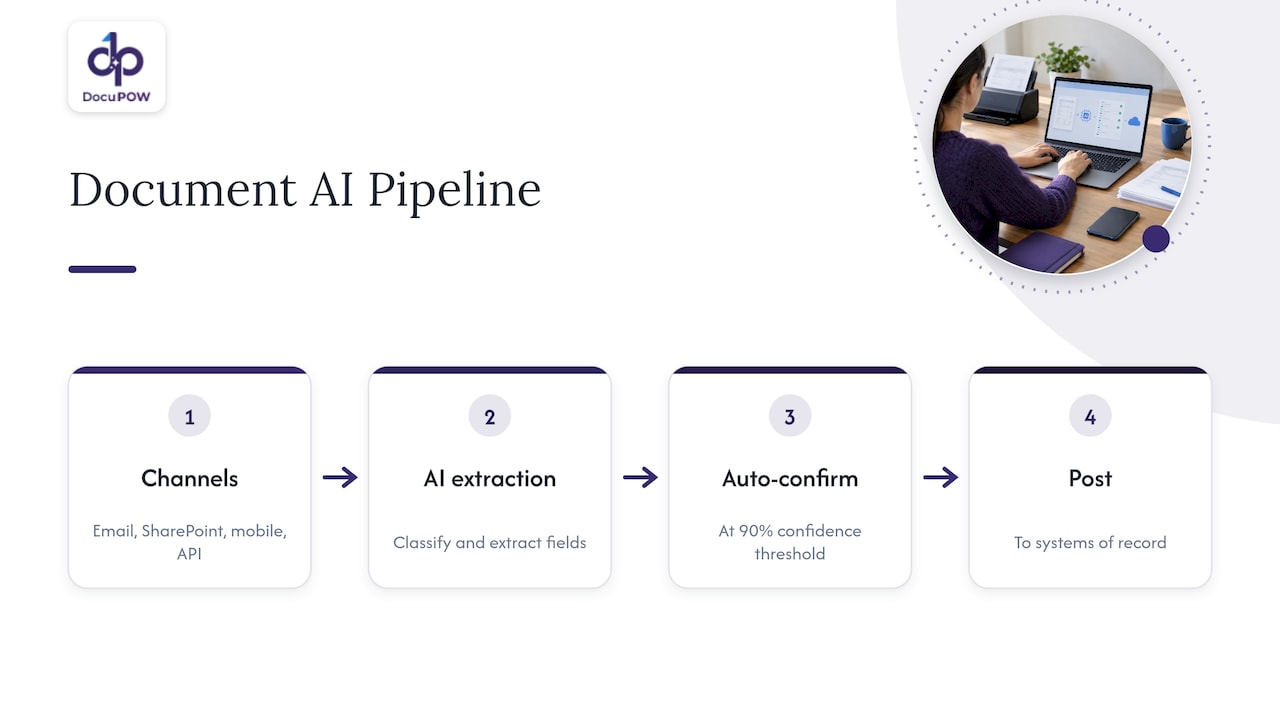
1. Capture documents from every channel
Documents arrive by email attachment, supplier portal, shared drive, scanner and API. If only one channel is automated, the rest keep feeding manual entry. List every inbound channel first, including the odd ones (a plant manager forwarding photos of delivery notes). Agent-based tooling is also changing how systems call each other; agent-to-agent and MCP protocols are worth understanding if your IT team plans to let software agents trigger document workflows.
Where it goes wrong: channels are added piecemeal and no one owns the full list. At DocuPOW, documents of any type are processed on one platform, so a new channel does not mean a new extraction setup.
2. Extract data without templates
Traditional OCR depends on templates: one per supplier and layout. It works until a supplier changes its invoice format, and then someone has to rebuild the template. Template-free extraction reads the document the way a person does, locating the invoice number, line items and totals from context.
This is where most of the maintenance burden lives, so it is where the choice of tool matters most. Our zero-shot extraction adapts to layouts it has not seen before, which minimizes setup and ongoing template upkeep. For a team with hundreds of suppliers, that difference decides whether the project stays staffed after launch.
SAP’s reference architecture cites 85 to 95% accuracy for generative AI extraction on structured attributes. That is why the next step exists.
3. Validate, match and review exceptions
Extraction produces candidate values. Validation decides whether they are safe to post. Good validation covers:
- Schema checks: required fields present, dates and amounts in valid formats.
- Business rules: does the vendor exist, do line totals add up, is the PO open?
- Record matching: tie the invoice to the purchase order and receipt.
- Confidence routing: high-confidence documents pass straight through, low-confidence ones go to a reviewer.
EBH Advisory Group makes the point well: extraction is only one step, and the workflow becomes useful when it produces a reviewable work item with matching, validation and exception handling. A tool that stops at extracted fields hands you the hardest part of the job.
DocuPOW enforces strict schema validation and includes human-in-the-loop audit review, so a person sees the questionable documents and the rest flow through. For how to design that queue, see our guide to document exception handling and how document routing with AI assigns each item to the right owner.
4. Post to the ERP through its API
The last step writes the validated data into the ERP: creating a vendor bill, updating a sales order, attaching the source document to the record. This is where integrations fail quietly, because the ERP may accept the write but not tell you cleanly.
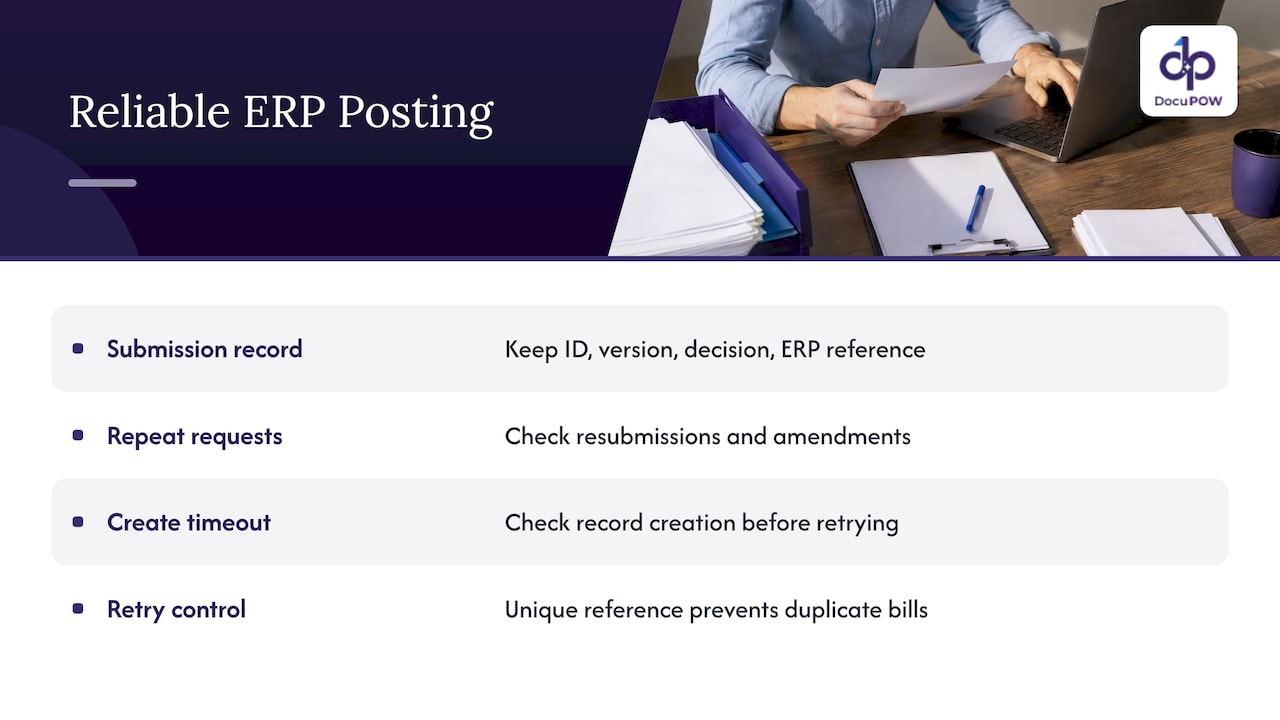
EBH’s guidance is practical here. Keep the original submission identifier, document version, review decision and resulting ERP record reference together, check repeat submissions and amendments, and when a create request times out, find out whether the record was actually created before you retry. Use a unique reference or duplicate-prevention mechanism so a retry never creates a second bill.
DocuPOW integrates with ERP and CRM systems through an API and provides developer tools, and it orchestrates the transaction flow into your core databases rather than leaving a file for someone to import. Our AI integration service for business document workflows page covers how that connection is set up.
NetSuite document processing: what the integration looks like
NetSuite is a common target for this work, and the pattern is the one above. Documents are captured and extracted outside the ERP, validated against your rules, and then written into NetSuite records through its API. Typical targets are vendor bills tied to purchase orders, item receipts for deliveries, and sales orders from customer POs. The source file should be attached to the resulting record so an auditor can open the original from the transaction.
Three design decisions shape a NetSuite document integration, and they apply to other ERPs as well:
- Which records get created automatically and which get staged. Many teams start by auto-creating only high-confidence, PO-matched bills and routing the rest to review.
- How vendors, items and accounts are matched. The integration needs reference data from the ERP (vendor list, chart of accounts) to validate against. Stale reference data is a common source of rejected records.
- Which service account does the posting. Give it only the permissions the workflow needs, and treat it as an accountable identity (more on this below).
The same questions come up for any ERP, whether you run NetSuite, SAP or a mid-market system. Ask your integration provider how it handles reference data sync, partial failures and attachments before you commit.
Ways to integrate documents with an ERP
There are three broad approaches, and they differ mainly in who carries the maintenance.
| Approach | How it works | Where it strains |
|---|---|---|
| Agent-based document platform | AI agents extract, validate and post through the ERP’s API | Needs clear validation rules up front |
| Template-based OCR plus custom scripts | A template per layout, custom code to load results | Every new layout or ERP change needs developer time |
| Manual entry with scanning | Staff key data from images | Slow, error-prone, does not scale with volume |
For most mid-size and enterprise teams, the first option is the one that removes manual entry without creating a template library to maintain. It is also the only one of the three that handles the full flow from capture to posting and review as one system. That is the model DocuPOW is designed around: our platform combines extraction, workflow orchestration and review, so IT does not stitch together separate tools.
Implementation plan: from requirements to go-live
A realistic rollout follows these steps. At each one we note what the platform takes off your hands.
- Inventory documents and channels. Pick one high-volume document type to start, usually supplier invoices or purchase orders. Count monthly volume and the number of distinct layouts. With template-free extraction, the layout count stops being a project risk.
- Define the target record and fields. For each document type, write down the ERP record it creates and the required fields. This becomes your schema, which DocuPOW validates against.
- Set matching and approval rules. Decide what must match (vendor, PO, receipt, amount tolerance) and who approves exceptions. These rules are yours; the platform applies them consistently and routes failures to review.
- Connect the ERP. Create an integration user with narrowly scoped permissions, and connect through the API. Pull reference data so validation uses live vendor and account lists.
- Define error handling before go-live. Decide what happens when the ERP is down, rejects a record or times out. Build alerting and a duplicate-prevention reference, as described above.
- Test with real documents. Run historical documents through the pipeline, including bad scans, amended invoices and duplicates. Test failure scenarios on purpose, not just the happy path.
- Go live in stages. Start with a limited set of vendors or a single entity, review daily at first, and widen as the exception rate falls.
- Review after launch. Track straight-through rate, exception reasons and time from receipt to posting, and adjust rules accordingly.
Where teams lose time is step 5. They treat error handling as a later phase and then discover the first timeout produced a duplicate payable. Plan it first.
Benefits and risks finance, procurement, sales and operations should expect
The benefits are concrete when the integration is built end to end:
- Finance and accounting: fewer keying errors, faster bill entry and a source document attached to every record.
- Procurement: purchase orders, receipts and invoices matched in one flow.
- Sales: quotes, customer POs and contracts reach the order record without retyping. Our order-to-pay flow shows this end to end.
- Operations and supply chain: delivery and shipping documents visible as they arrive. See our supply chain and manufacturing pages for document types in those industries.
The data-quality risks to design for are consistent across ERPs:
- Duplicates from resubmitted or amended documents.
- Wrong matches when a vendor name is similar to another vendor.
- Silent partial failures where the document is marked done but the ERP record was never created.
- Lost lineage when no one can tie an ERP record back to the document and the person who approved it.
Each one is handled by a rule or a log in the pipeline, not by hoping staff notice.
Security, audit and compliance controls to check
When a pipeline writes into your ERP, it becomes part of your financial controls. For US public companies, that means Sarbanes-Oxley (SOX) controls over financial reporting. For healthcare organizations, HIPAA governs patient information, so documents containing it need access controls and logging at every stage.
The controls to confirm:
- Accountable service identities. NHI Governance advises that pipeline and service-account identities be held to the same accountability as human approvers. The control question is who had authority, not who clicked the button.
- Change evidence that tells a story. For SOX, track who initiated each change, what changed, what approval authorized it and when it took effect, with before-and-after values, as the same guidance describes.
- Review decisions stored with the record. Whoever approved an exception should be traceable from the ERP entry.
- Encryption and access controls on the document platform itself.
DocuPOW protects data with bank-grade encryption on a cloud-native architecture designed for high-volume environments, and its human-in-the-loop review keeps an audit step in the flow. Details are on our security page. Confirm your specific retention periods and audit requirements with your compliance officer or auditor, since they depend on your industry and regulator.
Our perspective
Most failed document integrations share one cause: they treat the project as an OCR problem. Reading the invoice is the easy half. The hard half is everything after: matching, validation, exceptions, posting and proof.
That is why we built DocuPOW as an operating system for document intelligence rather than an extraction tool. Our agents read documents without templates, so a new supplier layout does not become a ticket for IT. They validate against a strict schema, send uncertain items to a human reviewer, and push clean data into your core systems through an API.
If you are choosing a platform, judge it by what happens after the fields are extracted. Does it validate? Does it route exceptions? Does it keep the trail an auditor will ask for? Those questions separate a demo from a system your finance team can rely on.
Syed Naveed Abbas
Start with one document type
The fastest path is a single, high-volume flow, usually supplier invoices, connected to your ERP with validation and review in place. DocuPOW’s Starter plan is $99 per month and Professional is $499 per month, and Enterprise is available for larger deployments; see the pricing page for what each includes.
If you want to see how the pipeline handles your own documents and ERP, start from the DocuPOW platform page or review our product overview.
FAQ
What is ERP document integration?
It is the connection between your incoming business documents and the ERP records they create or update. Invoices become vendor bills, customer POs become sales orders, and the source file stays attached for audit. The goal is that no one retypes data from a PDF.
Which automated document platforms integrate with ERP systems?
Look for platforms that connect through an ERP’s API and cover the whole flow: extraction, validation, review and posting. DocuPOW integrates with ERP and CRM systems through an API and offers developer tools for custom connections. Check any platform’s handling of duplicates, timeouts and audit trails.
Can document processing be integrated with NetSuite?
Yes. The usual pattern is to extract and validate data outside the ERP, then write it into records such as vendor bills or sales orders through the API and attach the source document. DocuPOW’s API-based integration follows this pattern, and our integration service page explains the setup.
How does IDP differ from basic OCR in an ERP workflow?
OCR turns an image into text, usually with a template per layout. Intelligent document processing understands what each field means, validates it and routes exceptions. For ERP work, that understanding is what lets data post without manual cleanup. Our OCR automation guide goes deeper.
How do you prevent duplicate records when posting to an ERP?
Attach a unique reference to every submission, check for repeats and amendments, and after a timeout verify whether the ERP record exists before retrying. Store the ERP record reference with the document so the link is never lost.
Sources
- Document Processing with SAP Document AI, SAP Architecture Center
- AI Document-to-ERP Workflows: From Extracted Fields to a Reliable Handoff, EBH Advisory Group
- How should security teams track ERP configuration changes for SOX compliance, NHI Governance
Recommended
See DocuPOW on your documents.
Stop building templates. Start extracting data.


